


Windows PCs have supported automatic device encryption for a couple of years now. For this to happen, though, your PC had to meet strict hardware requirements, and you needed to sign in with a Microsoft account so the encryption key was backed up to the cloud.
But those who recently received a BIOS update woke up to a rude surprise: their PCs were locked behind a screen demanding a 48-digit recovery key that most people didn't even know existed in the first place. I've spoken about why device encryption matters, and I stand by that. The problem is when Windows enables it for you without asking, and then a routine update locks you out.
Your PC already has a hidden encryption key, you just don't know it
Windows quietly encrypts your drive during setup, no consent required

If you set up a Windows 11 PC anytime after October 2024, there's a good chance your drive is already encrypted, even if you didn't consent to it or saw a warning. Device Encryption has quietly existed on Windows Home since 2013, but the 24H2 update removed the hardware checks that used to limit which PCs qualified. Machines that never would have triggered automatic encryption before now do, by default, the moment you finish setup.
Even if you skipped signing into a Microsoft account and used a local account instead, your drive still gets encrypted. The only difference is where the key lives. Instead of being backed up anywhere, it sits on your own disk in what's called a "clear key" state, unprotected, doing nothing more than technically satisfying the box that says "encryption enabled." Your data is scrambled, but your PC stays unlocked.
This changes the moment you sign into a Microsoft account, even briefly, even if you switch back to a local account right after. That's the moment Windows swaps the clear key for a real one and uploads it to your Microsoft account. Now the door is locked for real, and if anything ever goes wrong, that account is the only place your key exists.
A routine BIOS update can lock you out of your PC
BIOS and firmware updates can break BitLocker's trust chain overnight

The problem here isn't the encryption itself. BitLocker doesn't just encrypt your drive once and leave it alone. It constantly checks that your PC's boot environment hasn't changed since the key was locked in. That check runs against things like your BIOS/UEFI settings, Secure Boot state, and TPM measurements. As long as nothing changes, Windows boots normally without ever asking for the key.
A BIOS update is an ideal event that can trigger this logic. And you don't even have to install one yourself anymore. Windows Update can push BIOS and firmware updates automatically now, often without much visibility into what's happening or when. When that update alters the values BitLocker is checking against, Windows can no longer confirm your system is in the same trusted state it was in when encryption was set up. So it does what it's designed to do: it locks you out and demands the 48-digit recovery key before it'll let you back in.
To be fair to Microsoft, this isn't supposed to happen every time. BitLocker is built to automatically suspend itself around known update events, sit in that unprotected "clear key" state temporarily, and then quietly resume once the update finishes, with no key required. The problem is when that resume step fails: a botched BIOS flash, a mismatched TPM reading, a bug in the update itself. Unfortunately, this isn't a rare, hypothetical edge case either. There's a documented pattern of exactly this happening through early-to-mid 2026, including a widely reported HP BIOS bug that trapped users in a BitLocker recovery loop, and a separate monthly-update bug that Microsoft only patched in May 2026.
So the unsettling part isn't that BIOS updates can theoretically cause this. It's that they have been causing it, recently, to real users who had no idea their PC was even encrypted in the first place. The first they hear about any of this is a black screen asking for a code they've never seen.
What to do before your next update locks you out
Find and save your recovery key now, or turn device encryption off entirely


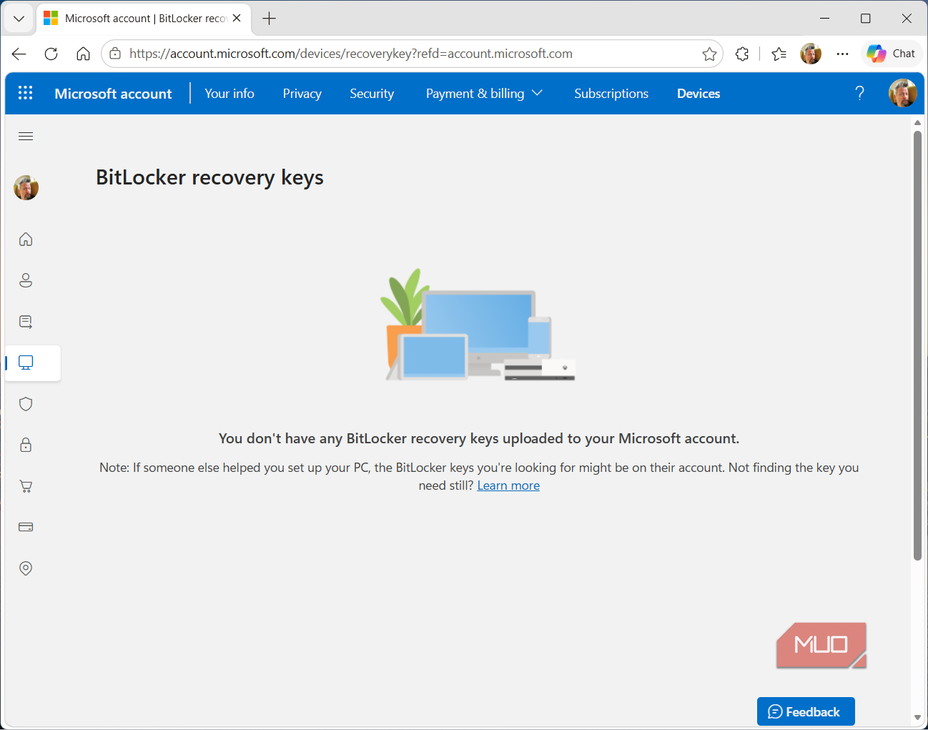


The good news is this problem has a five-minute fix. Go to account.microsoft.com, sign in, click Devices, select your PC, and look for BitLocker data protection. If your drive has been silently encrypted and armed, your 48-digit recovery key will be sitting right there. Write it down, save it somewhere outside your PC, a phone, a printed copy, anything that isn't the machine you'd need to unlock, and do this today, not after you're already staring at a recovery screen with no way in. You can also find where Microsoft hid your encryption keys for a more detailed walkthrough.
From there, you have two reasonable paths. If you'd rather keep encryption on, just make sure your key is backed up somewhere you can reach, and don't delete the Microsoft account it's tied to without moving that key first, because deleting the account throws the key away with it. If you'd rather not deal with any of this, you can turn device encryption off entirely: go to Settings > Privacy & Security > Device Encryption and turn it off. Decryption runs in the background, but you can continue to use your PC. Once decrypted, switch back to a local account afterward to keep it from silently re-enabling itself later.
Regardless of what you decide about encryption, back up your important files somewhere separate from your PC. If BitLocker locks you out and you don't have the key, encryption doesn't just protect your data from strangers. It protects it from you too, permanently. A backup is the one step that makes this whole scenario a non-issue no matter which way it goes.
Windows needs to handle automatic encryption better
I don't have an issue with encryption itself. I encrypt my own laptop on purpose, and I'd recommend most people do the same. The problem is Microsoft turning it on without telling anyone. When someone who never chose encryption, never saw a prompt, and never saved a recovery key gets locked out by a routine BIOS update, the security feature can turn into a nightmare in no time.
The fix isn't really about BitLocker settings. It's about the fact that silent, automatic protections should never be the only thing standing between someone and their files. Save your key, and make a backup.